
Why Upgrade the Legion Go?
The Lenovo Legion Go is already an impressive handheld gaming device, but like many portable systems, its biggest limitation is battery life and storage space. To address this, I recently installed an 81 Wh battery, paired it with a new back plate, and upgraded to a 4 TB SSD. The result has been a massive improvement in play time and storage capacity, though the process was not without challenges and risks. You can watch my install video here:https://youtu.be/p6uWSM6O5aU
Preparing for the Installation
Whenever I open my Legion Go, I start by entering the BIOS and disabling the built-in battery. This prevents the system from powering on accidentally while I’m working on it. The option is located under the configuration tab as “Disable Built-in Battery.”
One feature that makes the Legion Go a great device to work on is its detachable controllers, allowing it to sit flat while I tinker. The battery kit includes tools, but their quality leaves much to be desired. Instead, I relied on my IFIXIT kit, though one tool from the included kit was indispensable.
Removing the Back Cover and Battery
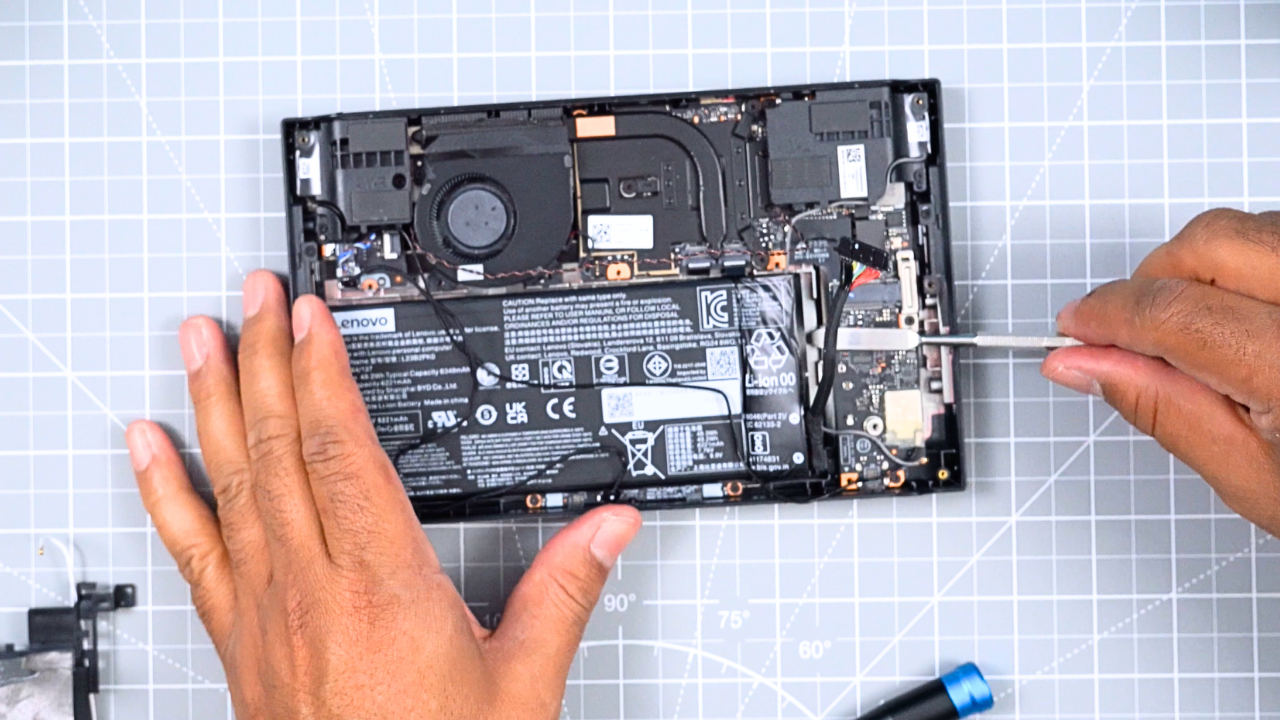
The first step was removing six screws to take off the back cover. Prying it open was tricky because I didn’t want to damage my Dbrand skin, but once started, it came off smoothly. After disconnecting the battery, I unscrewed and removed the SSD.
To ensure I was following the correct procedure, I referred to Lenovo’s hardware maintenance manual for the Legion Go. The manual detailed removing five screws to detach the battery bracket. With a pry tool, I carefully slid off the battery cables and pulled two tabs on the right side—likely meant to loosen the adhesive holding the battery in place.
Getting the battery out, however, required far more force than expected. Using my IFIXIT pry tool, I cautiously worked it free without puncturing it. Unfortunately, several cables came loose in the process, but I was able to reconnect them.
Installing the New 81 Wh Battery
Comparing the new 81 Wh battery with the old 49.2 Wh one, the added thickness was immediately noticeable. To make space, I removed foam from the back of the battery bracket before sliding the new unit in place. After reconnecting the cables and reinstalling the SSD, I turned my attention to the back plate.
The replacement back plate—purchased on Amazon—was slightly taller to accommodate the larger battery. It appeared 3D printed and required transferring hinges from the old plate, which involved removing several screws and a sticker. After securing everything, I reinstalled the back cover and ran a battery report, confirming the system recognized the new battery.
Performance Testing: Old vs. New Battery
To measure improvements, I set the Legion Go to performance mode with smart fan control and ran a one-hour gaming session. With the stock 49.2 Wh battery, the charge dropped from 100% to 36%. Under identical conditions, the 81 Wh battery ended the session at 69%. The results speak for themselves—the upgrade nearly doubled effective battery life.
I also tested charging times. Starting at 5%, a 30-minute charge with the stock 65W adapter raised the battery to just 28%. Switching BIOS charging modes and even trying a 140W AOHI charger didn’t improve results. A full charge from 5% still required just over two hours.
Upgrading the SSD to 4 TB
The new back cover was designed to fit a 2280 SSD. After disconnecting the battery again, I removed the existing SSD and swapped it for a 4 TB model. The process was somewhat awkward due to the thicker battery, but manageable.
One drawback was how loosely the SSD sat in its slot. Although a tab held it in place and the cover snapped on, I would have preferred a screw-secured design. Still, the upgrade provided ample space for my ever-growing game library.
Weight and Practical Considerations
The modifications did add weight. The stock Legion Go weighed 865 g, while the upgraded version came in at 959 g. The difference is noticeable, though I usually rest the device on a surface while playing, so it wasn’t a major concern.
After reinstalling Windows via Lenovo’s recovery tool, the device was fully operational with its expanded power and storage.
Safety Risks and Warranty Concerns
While this upgrade has been worthwhile for me, it’s important to emphasize the risks. Lenovo explicitly warns against replacing the battery yourself, stating that non-Lenovo batteries void the warranty and improper installation could even cause explosions. For most people, a safer and simpler solution would be using a power bank or playing plugged in.
If you do stick with the stock battery, I recommend enabling Optimize Battery Charging in Legion Space, which caps charging at 80% to extend battery lifespan.
Final Thoughts
With the 81 Wh battery and 4 TB SSD installed, my Legion Go is now a far more capable handheld gaming machine. I can play longer sessions without worrying about running out of power, and I finally have enough storage for my entire library. Still, this modification carries risks, and unless you’re comfortable working with delicate hardware, I’d suggest leaving it to a professional repair shop.