
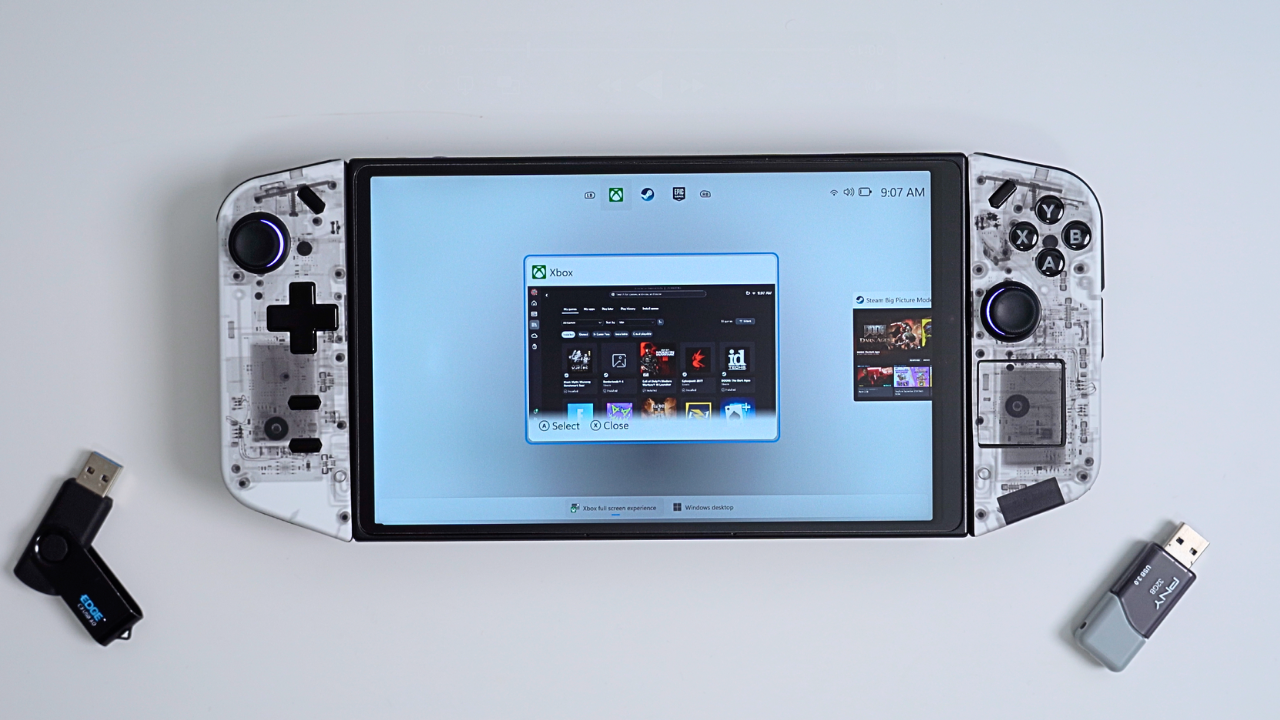
Why I Tried Xbox Fullscreen on the Legion Go
I wanted to see what the Xbox fullscreen experience was like on the Lenovo Legion Go. And while I was able to get it installed, I definitely learned a lot during the process. I was worried I might mess up my current Windows install, so instead of risking it, I swapped in a spare SSD I had lying around. That way, if something went wrong, I could just switch back without losing anything important. Here is a link to my Youtube video :https://youtu.be/TigyPi359bo
Installing Windows 11 with Xbox Fullscreen
I used one of my older laptops to download the Windows 11 ISO from the Windows Insider Preview page. If you plan on doing this yourself, keep in mind that Microsoft warns of unexpected PC crashes that could damage or delete your files. Build number 26200 contains the Xbox fullscreen mode.
There were two options: the Release Preview channel and the Dev channel. I went with Release Preview, which ended up being a mistake. I’ll explain why in a moment.
Next, I used Rufus to burn the ISO onto a thumb drive. After connecting the drive, the install process started immediately. At the install location screen, I selected my 1TB SSD. It gave me an error, but deleting the partition let me move forward.
During setup, it asked me to connect to Wi-Fi. Without drivers, I had to pause, go back to my laptop, download the drivers from Lenovo’s support page, put them on a USB, and then install them before I could continue.
Enabling Xbox Fullscreen with ViveTool
Once Windows was running, I looked in Settings under Gaming for the Xbox fullscreen option, but it wasn’t there. So I turned to ViveTool. I downloaded the Intel/AMD version, extracted it, and ran it from Command Prompt as administrator.
I opened the Vive tool folder with this command:
cd C:\Folder\You\Used\For\ViVeTool
I then entered the following two commands:
ViVeTool.exe /enable /id:52580392
and
ViVeTool.exe /enable /id:50902630
I then went into the Registry Editor and used the following path to get to the OEM folder:
Computer\
HKEY_LOCAL_MACHINE\
SOFTWARE\
Microsoft\
Windows NT\
CurrentVersion\
OEM
Once I got to the OEM folder, I clicked on a blank space then added a new folder within DWORD 32-bit value called Device Form. I set data to 2E. After restarting, the Xbox fullscreen option appeared in Settings. I set Xbox as the home app and enabled fullscreen mode on startup.
When I restarted, Xbox fullscreen finally launched — but none of the Legion Go controls worked. Swiping up from the bottom didn’t bring me into desktop mode either. Installing Lenovo’s recommended drivers and Legion Space didn’t fix the problem.
Switching my Insider channel from Beta to Dev finally solved it. After restarting, I could use the controllers to enter my PIN, boot directly into Xbox fullscreen, and navigate everything. Swipes for quick settings, notifications, and desktop mode all worked as expected.
Controller and Launcher Support
I tested whether the controllers worked across different game launchers. From the Xbox app, I played Call of Duty: Modern Warfare. On Epic Games, I tested Fortnite. On Steam, I tried Marvel Rivals. The Legion Go controllers worked perfectly across all of them.
I also detached the controllers for FPS mode, and they kept working without issue. The touchscreen still let me navigate the Xbox UI. Xbox fullscreen even allowed me to keep multiple launchers open and switch between them using the joystick, with the X button to close.
Launching games directly from the Xbox dashboard also worked. For example, I started Borderlands 4 from the dashboard, and it automatically opened my Steam library and launched the game.
Features That Worked (and Some That Didn’t)
While in game, I could access Xbox quick settings by swiping from the left. However, swiping wasn’t always consistent. The Xbox performance monitor didn’t activate, but screen recording did. I was able to capture a short clip of Borderlands 4 running on the Legion Go.
Considering this is still in development, I liked seeing these features take shape. And when quick settings didn’t work, Legion Space was still available as a backup.
Benchmark Testing
I wanted to see if Xbox fullscreen affected gaming performance. I ran in-game benchmark tools for Cyberpunk 2077, Black Myth Wukong, and Doom: The Dark Ages.
- Cyberpunk 2077 – Custom preset with AMD Super Resolution 2.1 on performance and most settings low. Xbox fullscreen averaged 63 FPS vs. 59 FPS on standard Windows.
- Black Myth Wukong – FSR with frame generation on, most settings low. Xbox fullscreen scored 97 FPS vs. 87 FPS.
- Doom: The Dark Ages – Settings on low, 1280×800 resolution. Xbox fullscreen averaged 67 FPS vs. 64 FPS.
Across all three, Xbox fullscreen came out slightly ahead. The gains weren’t huge, but they were consistent.
What I Liked
This update made the Legion Go feel closer to a dedicated Xbox handheld dashboard. I liked being able to switch between launchers, keep them open, and even see small performance boosts in games. Controller support across Xbox, Epic Games, and Steam was also seamless.
What I Didn’t Like
The Windows install process felt too long and clunky, with way too many unnecessary setup screens for a handheld gaming device.
I also noticed an issue with sleep mode. When I pressed the power button while playing Call of Duty, the Legion Go didn’t fully hibernate — I could still hear the game running. It dropped me to the lock screen, but I didn’t have to log back in. I just swiped up and went right back into the game. Convenient, but definitely not a proper sleep mode yet.
Other than that, most of the problems were smaller bugs and refinements that I think Microsoft will fix over time.
Final Thoughts
I didn’t get exactly what I wanted — a handheld that feels purely like an Xbox. But this is a big step in the right direction. It’s not perfect yet, but it’s closer than it’s ever been. For now, I’d call Xbox fullscreen on the Lenovo Legion Go “almost there.”