
Prefer to watch instead? You can watch my full video on YouTube:
https://youtu.be/RSAcM8hYkaI
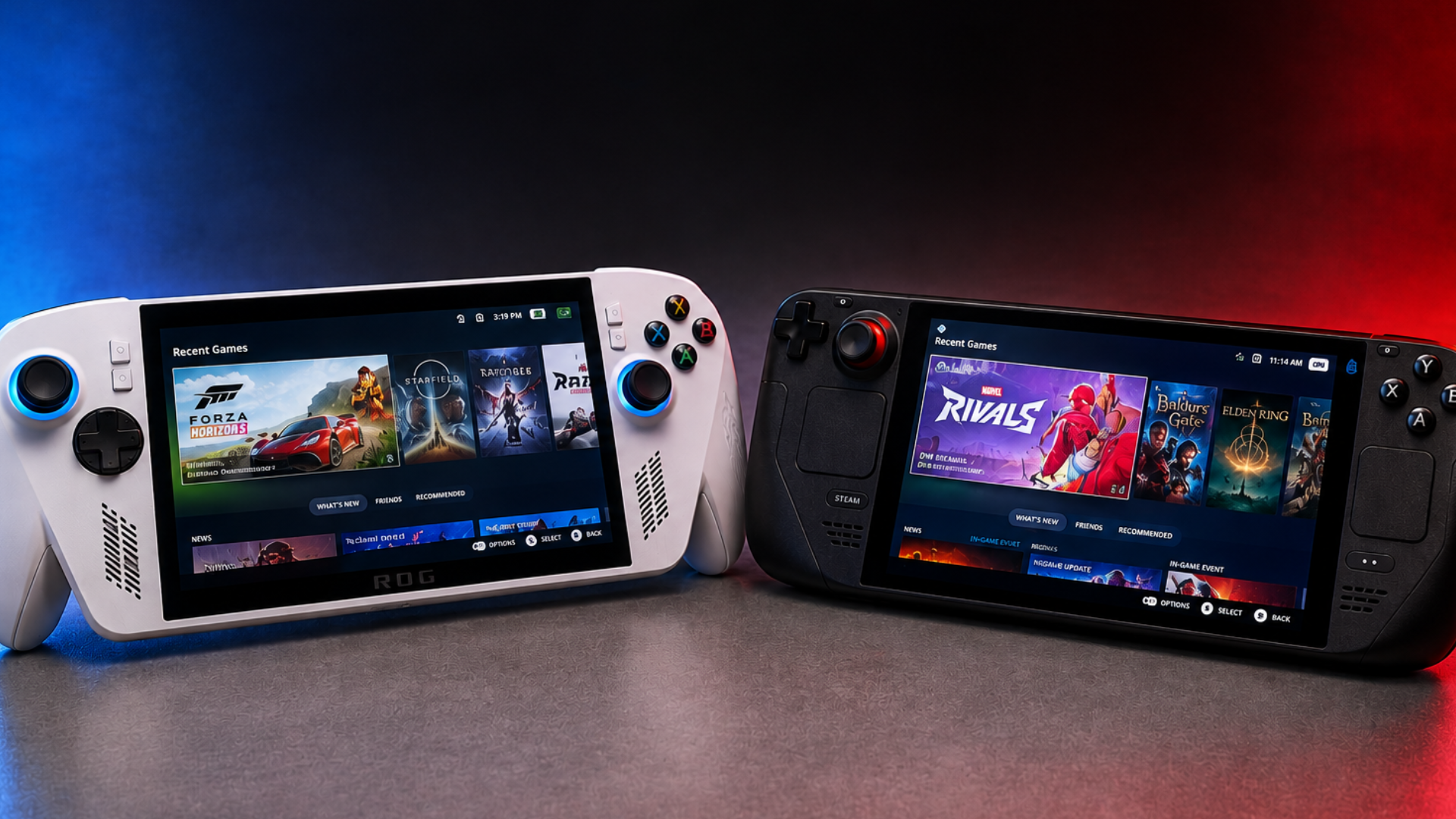
With Valve raising the price of the Steam Deck, I wanted to see if there was a less expensive way to get a similar experience. One option was the ROG Xbox Ally, especially since used and open-box models can sometimes be found for considerably less than a new Steam Deck OLED.
I purchased an open-box ROG Xbox Ally from Best Buy for about $442 before tax. I upgraded the storage to 2TB, replaced Windows with SteamOS, tested several games, and compared the experience with my Steam Deck OLED.
The goal was simple: Could a used ROG Xbox Ally running SteamOS be a good alternative to buying a Steam Deck OLED?
Starting With a Cheaper Handheld
At the time of my comparison, a 512GB Steam Deck OLED was selling for $789, while the 1TB model was $949. By comparison, my open-box Xbox Ally cost $442 before tax.
The Xbox Ally only came with 512GB of storage, so I decided to upgrade it to a 2TB SSD before installing SteamOS.
Replacing the SSD wasn’t necessary to install SteamOS. I wanted the additional storage, but I also prefer to keep the original factory SSD untouched. If I ever want to return the device to its original configuration, I can simply reinstall the original drive.
Upgrading the ROG Xbox Ally SSD
Opening the Xbox Ally was relatively straightforward. There are eight screws on the back: five across the rear and three along the bottom. I used a #1 Phillips screwdriver to remove seven of them and loosen the top-middle screw.
After that, I carefully separated the back cover using a pry tool. I took my time because a ribbon cable connects the back cover to the rest of the system.
Once inside, I disconnected the battery, removed the screw holding the original SSD in place, and replaced it with the new 2TB drive. Then it was simply a matter of putting everything back together.
I also opened my Steam Deck OLED to see how the two compared.
The Steam Deck also has eight screws, although removing them requires a T6 Torx bit. Once inside, there’s a metal plate covering the internal storage that has to be removed before accessing the SSD.
Neither device was particularly difficult to work on, but there is an important difference between them. My Steam Deck OLED uses a smaller 2230 SSD, while the Xbox Ally supports the more common 2280 form factor.
I prefer the 2280 support on the Xbox Ally because it gives me more options when shopping for storage upgrades.
Installing SteamOS on the Xbox Ally
With the new SSD installed, the next step was getting SteamOS onto the Xbox Ally.
I downloaded the SteamOS image and used Rufus on a Windows PC to create a bootable USB drive. I then connected the Xbox Ally to a dock along with a wired keyboard and mouse.
My first attempt didn’t go perfectly.
When I tried booting from the USB drive, I immediately received a Secure Boot violation. I had forgotten to disable Secure Boot in the BIOS.
Fortunately, it was an easy fix. From the BIOS, I entered Advanced Mode, went into the Security settings, found Secure Boot Control, and disabled it. After saving the changes and restarting, the SteamOS installation began normally.
Eventually, I reached the SteamOS desktop and selected the option to wipe the device and install the operating system. After confirming the warning that the data on the drive would be erased, the installation took care of the rest.
A short time later, I was looking at the SteamOS welcome screen.
The installation ended up being one of the easier operating system installations I’ve done, but that doesn’t mean I think the process is for everybody.
It’s also worth considering ASUS’s warranty policy before making hardware or software modifications. This is another reason I prefer keeping my original SSD intact rather than installing another operating system directly onto it.
How Well Does the Xbox Ally Work With SteamOS?
For the most part, everything worked the way I expected.
The triggers, face buttons, D-pad, and joysticks worked normally. The Xbox button brought up the Steam menu, while the library button opened Quick Settings.
SteamOS even recognized that I was using an ROG Ally and identified it as my controller.
There was one small quirk. Both the Xbox and Command Center buttons opened the Steam menu, which essentially left me with two buttons doing the same thing. I’m sure I could remap one of them, but I haven’t decided what I would want to use it for.
Other than that, the Xbox Ally felt surprisingly natural with SteamOS installed.
The Xbox Ally Is Extremely Comfortable
When I first saw the Xbox Ally, I wasn’t a big fan of its appearance. After actually spending time with it, though, I’ve come to appreciate the design for a different reason.
I think it has some of the best ergonomics of any handheld I own.
It’s simply comfortable to hold. I found that I could use it for longer periods without my hands getting cramped or tired.
I also appreciate having two USB-C ports. I can charge the Xbox Ally and still have another USB-C port available for an accessory. The Steam Deck only gives me one.
The front-facing speakers are another highlight. They’re some of the best I’ve heard on a handheld. That’s not to say the Steam Deck speakers are bad—they’re very good—but watching videos on the Xbox Ally was particularly enjoyable.
SteamOS Sleep Mode Is a Big Improvement
One of the features I was particularly interested in trying was sleep mode.
When I’ve used the Windows version of sleep on handheld PCs, I’ve found it unreliable enough that I often use hibernate instead.
With SteamOS installed, the experience was much closer to what I want from a handheld gaming system.
I could press the power button while I was in the middle of watching something, put the Xbox Ally down, and take care of something else. When I came back and woke it up, I could pick up right where I left off.
Not having to shut down the entire system just to conserve battery while I’m doing something else makes a big difference in everyday use.
Where the Steam Deck OLED Is Better
The Steam Deck OLED still has a few hardware advantages that I missed while using the Xbox Ally.
The first is the trackpads. I like having them available as another input option, especially when navigating software that wasn’t designed specifically for a controller.
The biggest difference for me, though, was the display.
The Xbox Ally has a 7-inch 1080p LCD with a 120Hz refresh rate. It’s a good-looking display, but I rarely played games at 1080p. Most of the time, I dropped the resolution to 800p.
The Steam Deck OLED also has an 800p resolution, but its OLED panel can reach a 90Hz refresh rate and has up to 1,000 nits of peak brightness.
To my eyes, the Steam Deck OLED screen simply looks better.
Still, I could live with those hardware differences if the Xbox Ally could give me a similar gaming experience while costing less.
Xbox Ally vs. Steam Deck OLED Gaming Performance
For my gaming comparison, I used the same device and in-game settings as much as possible.
Both handhelds were set to 800p with a 60Hz refresh rate. For most games, I used AMD FSR 3, although I used FSR 2 with Forza Horizon 6. Most graphics settings were set to low, or medium when low wasn’t available, and I kept frame generation disabled.
I also limited both devices to a 15-watt TDP to make the comparison as even as possible.
The results were surprisingly close.
Pragmata
In Pragmata, both the Xbox Ally and Steam Deck OLED moved anywhere from the high 20s to the mid-40s depending on what was happening on screen.
Neither device stood out as being significantly better than the other.
007 First Light
007 First Light was a little different.
Both handhelds generally stayed in the mid-to-high 30s, occasionally moving into the 40s. The Steam Deck, however, produced consistently higher frame rates throughout my testing.
Forza Horizon 6
With Forza Horizon 6, both systems spent most of their time in the 40s.
The two traded places while I was playing, but I’d give a slight advantage to the Xbox Ally. It seemed to spend a little more time at the higher end of the frame-rate range.
Marvel Rivals
Marvel Rivals produced another close result.
Both devices generally stayed between the mid-30s and mid-40s. Once again, I couldn’t say that either one was clearly better based on frame rates alone.
More importantly, there was never a point while playing games on the Xbox Ally when I felt like I needed to spend more money and buy a Steam Deck OLED.
I was having just as much fun playing on the cheaper device.
The Hardware Is More Similar Than It Might Seem
The close gaming results make more sense when looking at the specifications.
The Steam Deck uses a custom Zen 2 AMD APU, while the Xbox Ally uses AMD’s Ryzen Z2 A processor. Both devices have 16GB of RAM and use RDNA 2 graphics with eight graphics cores.
The Steam Deck’s processor has a maximum clock speed of 3.5GHz, while the Xbox Ally can reach 3.8GHz.
There’s also a difference in configurable TDP. The Steam Deck goes up to 15 watts, while the Xbox Ally can go as high as 20 watts.
For my comparisons, however, I kept both at 15 watts.
Battery Life Surprised Me
The Xbox Ally has a 60Wh battery, compared with 50.2Wh in the Steam Deck OLED. Because of that difference, I expected the Xbox Ally to have an advantage in my battery test.
It didn’t.
I set a timer for 60 minutes and played 007 First Light for the first 30 minutes before switching to Forza Horizon 6.
After approximately 30 minutes, the Xbox Ally had 75% battery remaining. The Steam Deck OLED had 77%.
After the full hour, the Xbox Ally was down to 46%, while the Steam Deck still had 55%.
The results weren’t dramatically different, but I was surprised that the Steam Deck came out ahead despite having the smaller battery.
Adding Accessories to the Xbox Ally
Once I had the Xbox Ally running the way I wanted, I started experimenting with accessories.
One of them was the Steam Controller. I originally bought it to use with the Steam Machine, but it also paired nicely with the Xbox Ally running SteamOS.
The Steam Controller has quickly become one of my favorites. I like having the trackpads, and it has the familiar buttons for bringing up the Steam menu and Quick Settings.
For my TV setup, I paired the Ally with a dock designed specifically around its larger grips. The dock raises the handheld enough for those grips to fit properly.
Combined with the Steam Controller, this gave me a simple living-room setup. I could use my television to watch YouTube and then switch over to one of my games.
The Xbox Ally wasn’t producing the type of performance I’d expect from a dedicated high-end gaming console, but the performance I was getting was good enough for me.
A More Portable Case
I also bought a protective case that fits directly over the Xbox Ally’s grips and includes a removable front cover to protect the display and controls.
I like this style of case because it’s minimal. Instead of carrying the Ally inside a larger traditional case, I can put the front cover on and slip the entire handheld into my sling bag.
I carried the Xbox Ally around for a day using this setup and liked how easy it was to take it out, start playing, put the cover back on, and return it to my bag.
The design is similar to the dbrand Killswitch case. To me, the dbrand case feels more premium, but it’s also more expensive. Which one makes more sense really depends on what you’re looking for.
SteamOS Wasn’t Completely Trouble-Free
Installing SteamOS didn’t magically make everything perfect.
Shortly after the installation, the RGB lighting around the joysticks stopped working.
I’d encountered a similar problem before, so I went into Desktop Mode and installed Decky. After returning to Gaming Mode, I installed the HueSync plugin, which allowed me to get the RGB lighting working again.
Game compatibility is another consideration.
Not every game works with SteamOS because of anti-cheat software. During one of my tests, for example, a game I wanted to play wouldn’t run under SteamOS.
Cloud gaming provides one possible workaround. GeForce Now can be installed and used for games such as Call of Duty or Fortnite that might otherwise present compatibility problems.
I also had to do some extra work to get the YouTube experience I wanted.
There wasn’t an official YouTube application for SteamOS that suited what I was trying to do, so I installed Chrome through Desktop Mode and added it to Steam as a non-Steam application. I then changed its properties and mapped the Xbox Ally controls so I could navigate YouTube without needing a mouse and keyboard.
It took a little work, but I eventually got pretty close to the experience I wanted.
These kinds of adjustments aren’t necessarily unique to SteamOS. Every operating system and handheld I’ve used has had things I’ve needed to figure out along the way.
How Much Did My Xbox Ally Setup Cost?
Prices change over time, so these numbers reflect the prices I found when I made this comparison.
I used the 1TB Steam Deck OLED at $949 as my baseline.
My open-box Xbox Ally cost $442.
The 2TB SSD I used was selling for approximately $290 at the time of my final comparison. I also added a $37 case, $100 Steam Controller, and $36 dock.
That brought the total cost of the setup to approximately $905.
For less than the price of the 1TB Steam Deck OLED, I had an Xbox Ally with 2TB of internal storage, a Steam Controller, protective case, and dock.
That doesn’t mean I think everyone should build exactly the same setup. The point is what the price difference made possible.
There’s also the 512GB Steam Deck OLED, which was selling for $789. By itself, that’s still a good option. But upgrading its internal storage brings the total closer to what I spent on the open-box Xbox Ally and several accessories.
Used Steam Decks are another option. An older LCD Steam Deck could potentially be an even less expensive way to get into SteamOS.
Is an Xbox Ally With SteamOS Worth It?
The Steam Deck OLED definitely has advantages.
I prefer its OLED display, I like having the trackpads, and it performed better in my battery test. There’s also something to be said for buying a device that was designed around SteamOS from the beginning rather than installing the operating system yourself.
But the Xbox Ally surprised me.
Despite requiring some additional work, I was eventually able to get it running almost exactly the way I wanted. Gaming performance was close enough that I didn’t feel like I was giving up much by using the less expensive device, and I actually prefer some aspects of the Xbox Ally hardware, particularly its ergonomics, dual USB-C ports, and support for 2280 SSDs.
When I factor in everything I was able to get for roughly the same amount of money as a 1TB Steam Deck OLED, buying an open-box Xbox Ally and installing SteamOS was worth it for me.
It isn’t necessarily the better choice for everyone, but if you’re looking at current Steam Deck prices and wondering what else is available, the Xbox Ally running SteamOS is an alternative worth considering.